
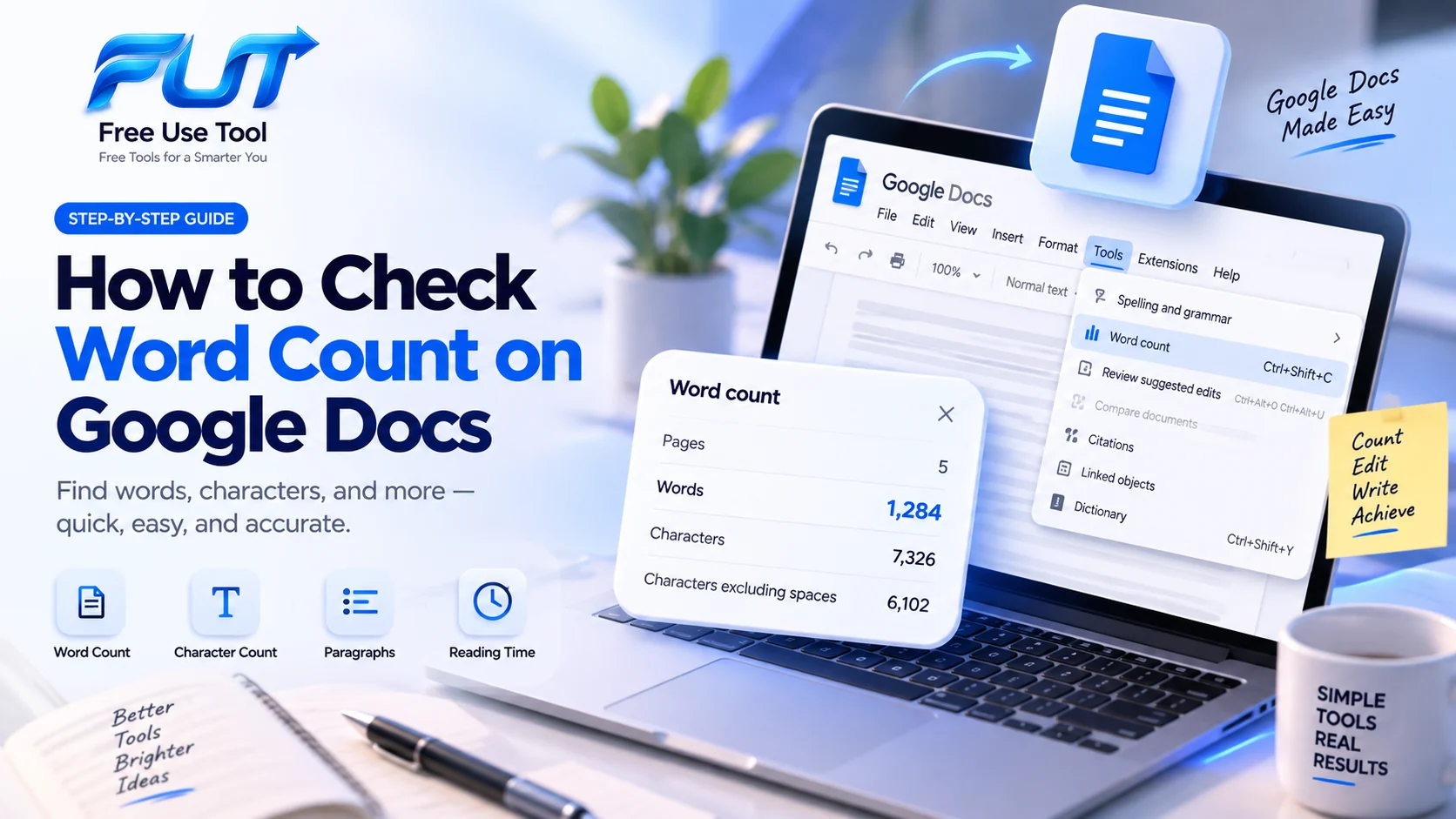
The quickest way to check word count on Google Docs is to open the Tools menu and select Word count, or press Ctrl+Shift+C on Windows and Chromebook (Cmd+Shift+C on Mac). A small window opens showing the total number of words, characters, characters excluding spaces, and pages in your document.
That covers the basics, but Google Docs has a few more word-counting options worth knowing about, including a way to keep the count visible while you type, how to count just a section of text, and what actually counts as a "word" when you're working with hyphens, numbers, or contractions. This guide walks through all of it.
How to Check Word Count on Google Docs
On a desktop or laptop, checking your document's word count only takes a few clicks:
- Open your document in Google Docs using a web browser.
- Click Tools in the menu bar at the top of the screen.
- Select Word count from the dropdown menu.
- A dialog box will appear showing the page count, word count, character count, and character count excluding spaces.
- Click OK to close the window once you're done.
If you're writing a 1,500-word assignment, you can use this feature to check your progress at any point without manually counting anything. The word count dialog always reflects the current state of your document, so you can open it as often as you like while you work.
How to See Word Count in Google Docs While You Write
If you'd rather not open the Tools menu every few minutes, Google Docs lets you keep the word count visible on screen the entire time you're writing. This is the answer to a few related questions people search for, including how to show word count on Google Docs, how to turn on word count in Google Docs, and how to see your word count on Google Docs without interrupting your work.
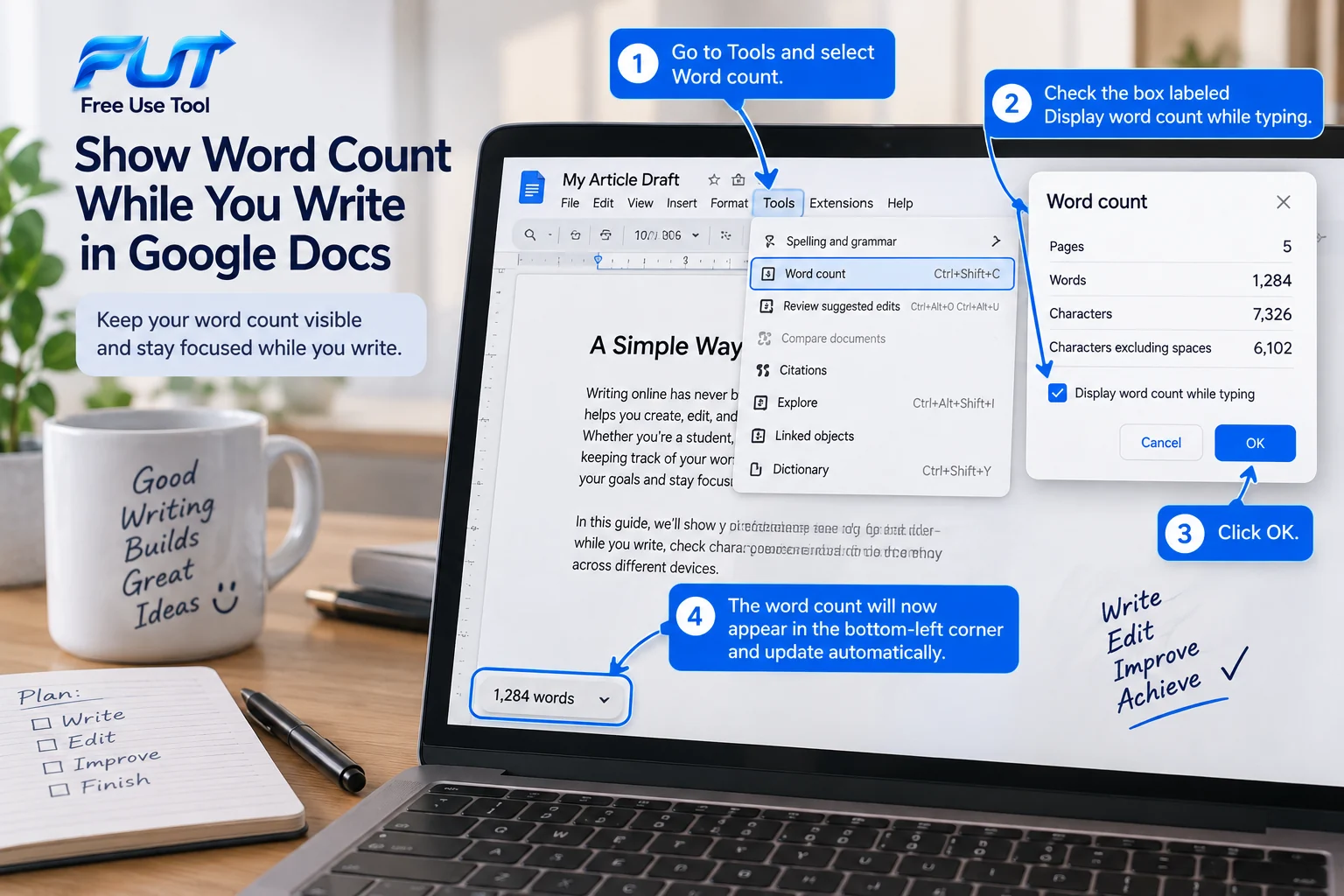
Here's how to turn it on:
- Go to Tools and select Word count.
- In the dialog box, check the box labeled Display word count while typing.
- Click OK.
A small counter will now appear in the bottom-left corner of your document and update automatically as you type or delete text. Click on it and you can cycle between word count, page count, and character count, depending on which number matters most for what you're writing.
One thing to know: this setting is saved per document, not as a global preference. If you open a new document, the live counter will be off by default, so you'll need to turn it on again. It's a small inconvenience, but it explains why the counter sometimes seems to "disappear" between documents.
How to Find Word Count on Google Docs Quickly
If you just need a one-time count and don't want to leave the live counter running, the keyboard shortcut is the fastest route. Press Ctrl+Shift+C on Windows or ChromeOS, or Cmd+Shift+C on Mac, and the Word count dialog opens immediately. There's no need to touch the menu bar at all. Press it again, or click outside the box, to close it.
This shortcut works the same way whether you're checking the whole document or a portion of it, which is covered in more detail below.
How to Check Word Count on Google Docs on a Phone
The word count feature is also available in the Google Docs mobile app, though the process is a little different from the desktop version and there's no keyboard shortcut to rely on.
On both Android and iPhone or iPad, the steps are essentially the same:
- Open your document in the Google Docs app.
- Tap the three-dot menu icon (?), usually found in the top-right corner.
- Tap Word count from the menu that appears.
A small box will display the word, character, and character-excluding-spaces count for your document. Unlike the desktop version, the mobile app doesn't offer a live, always-visible word count while you type. You'll need to reopen the menu each time you want an updated number. If you're doing most of your writing on a phone or tablet and check your count frequently, it may be worth switching to a browser tab when that's an option.
How to Check Word Count for Selected Text
Sometimes you don't need the count for an entire document, just for one paragraph, section, or chapter. Google Docs handles this automatically: select the text you want to measure by clicking and dragging over it, then open the word count dialog (either through Tools or the keyboard shortcut).
Instead of showing the total for the whole file, the dialog will display something like "42 of 1,203 words," giving you both the selection count and the document total at once.
This is useful in a few common situations:
- Checking whether a single paragraph or intro fits within a set limit.
- Measuring one chapter or scene inside a longer manuscript.
- Confirming the length of a pull quote or excerpt before sharing it elsewhere.
- Comparing the length of two sections you're deciding whether to trim.
What Does Google Docs Count as a Word?
Google Docs counts a "word" as any sequence of characters separated by a space or line break. In practice, that means numbers (like 2026), contractions (like don't), and most email addresses or web links are each counted as a single word.
Hyphenated compounds work the same way: a word like well-known or long-term is treated as one word, not two, because there's no space on either side of the hyphen. This is a common point of confusion for anyone comparing a manual word estimate to what Google Docs reports, so it's worth keeping in mind if your numbers don't match up exactly.
A few other things the word count dialog reports, beyond the word total:
- Pages: an estimate based on your current formatting, margins, and font size.
- Characters: every letter, number, space, and punctuation mark combined.
- Characters excluding spaces: the same total, minus spaces.
Google Docs does not include text in headers, footers, or footnotes in the main word count. If your document relies heavily on footnotes or a detailed footer, keep in mind that those won't be reflected in the number you see.
How to Count Characters in Google Docs
Character count shows up in the same dialog as word count, so there's no separate menu to hunt for. Open Tools ? Word count, or use the Ctrl+Shift+C / Cmd+Shift+C shortcut, and you'll see both figures side by side.
The distinction between the two numbers matters more than it might seem:
- Word count tells you how many words are in the document: useful for essays, articles, and most writing assignments with a word-based limit.
- Character count tells you the total number of characters, including spaces: useful for platforms with strict character limits, like social media posts, meta descriptions, or form fields.
- Characters excluding spaces gives you a stricter count, which some style guides and submission forms specifically ask for.
If you're writing a caption with a 280-character limit, for example, the character count (not the word count) is the number you actually need to watch.
How to Check Word Count in Microsoft Word
If you split your writing between Google Docs and Microsoft Word, the process is similar but lives in a different spot. In Word, word count appears automatically in the status bar at the bottom-left of the window, so in many cases you don't need to open a menu at all.
For a more detailed breakdown, or to check the count of selected text:
- Go to the Review tab in the ribbon.
- Click Word Count.
- A window opens showing pages, words, characters (with and without spaces), paragraphs, and lines.
As in Google Docs, selecting a portion of text before opening this window will show the count for just that selection rather than the whole document. The keyboard shortcut differs by version of Word, so if you use it often, it's worth checking under File ? Options ? Customize Ribbon ? Keyboard Shortcuts to confirm or set one.
If you don't currently have Microsoft Word, see our guide on how to get Microsoft Word for free, including how to use Word Online and other free options.
Google Docs Word Count vs. an Online Word Count Checker
For most everyday writing, the built-in Google Docs word count is all you need: it's already open in front of you, it's accurate, and it updates in real time. But there are a few situations where a standalone word count checker is genuinely more convenient:
- You want to check the length of text that isn't in a Google Doc yet, like an email draft, a message, or text copied from another app.
- You need extra statistics Google Docs doesn't show by default, like sentence count, paragraph count, or estimated reading time.
- You want to check word count without opening or signing into a document at all.
Free Use Tool's free online word counter works this way: paste in any text and it instantly shows word count, character count, sentence count, paragraph count, and reading-time estimates, all without needing a Google account or an open document.
When Word Count Matters
Word count comes up far more often than people expect once they start paying attention to it. A few of the most common situations:
- School and university assignments, which often specify a minimum or maximum word count.
- Essays and application materials, where going over a limit can mean automatic disqualification.
- Blog posts and articles, where length affects both readability and, often, search performance.
- Speeches and presentations, where word count is a rough stand-in for speaking time.
- Short stories and flash fiction, which are frequently judged partly by whether they fit a contest's word limit.
- Professional writing, such as press releases, proposals, or client deliverables with agreed-upon lengths.
Flash fiction is a good example of why it helps to check the specific guidelines rather than assume a single number. Different literary magazines and contests define flash fiction differently: some cap it at 500 words, others allow up to 1,000, and a few stretch the definition to 1,500. There isn't one universal word count that applies everywhere, so it's worth checking the submission guidelines for wherever you're sending the piece.
Speeches work a similar way: word count is a useful stand-in for length, but it depends heavily on speaking pace. If you're timing a talk rather than a document, our guide on how many words is a 5-minute speech breaks down the math in more detail.
| Content type | Typical word count range |
|---|---|
| Short essay or reflection | 300–800 words |
| Blog post | 800–2,000 words |
| Flash fiction | 500–1,500 words (varies by publication) |
| 5-minute speech | Roughly 650–750 words |
| College application essay | 250–650 words |
These ranges are general starting points, not fixed rules. Always defer to the specific guidelines you've been given.
Common Questions About Google Docs Word Count
How do I check word count on Google Docs?
Click Tools in the menu bar, then select Word count. You can also press Ctrl+Shift+C (Windows/ChromeOS) or Cmd+Shift+C (Mac) to open the same dialog instantly.
How do I see word count on Google Docs?
The word count appears in a small dialog box after you use the Tools menu or keyboard shortcut. It shows page count, word count, character count, and character count excluding spaces.
How do I show word count while typing in Google Docs?
Open the Word count dialog, check the box next to Display word count while typing, and click OK. A live counter will then appear in the bottom-left corner of your document as you type.
Can I check the word count of selected text?
Yes. Highlight the text you want to measure, then open the word count dialog. It will show the count for your selection alongside the total for the whole document.
Does Google Docs count characters too?
Yes. The same dialog that shows word count also displays total characters and characters excluding spaces, so you don't need to check a separate menu.
How do I check word count on Microsoft Word?
Word count typically shows automatically in the status bar at the bottom of the window. For a full breakdown, go to the Review tab and click Word Count.
Comments
Sign in to join the conversation.
Sign InBe the first person to start the conversation.