
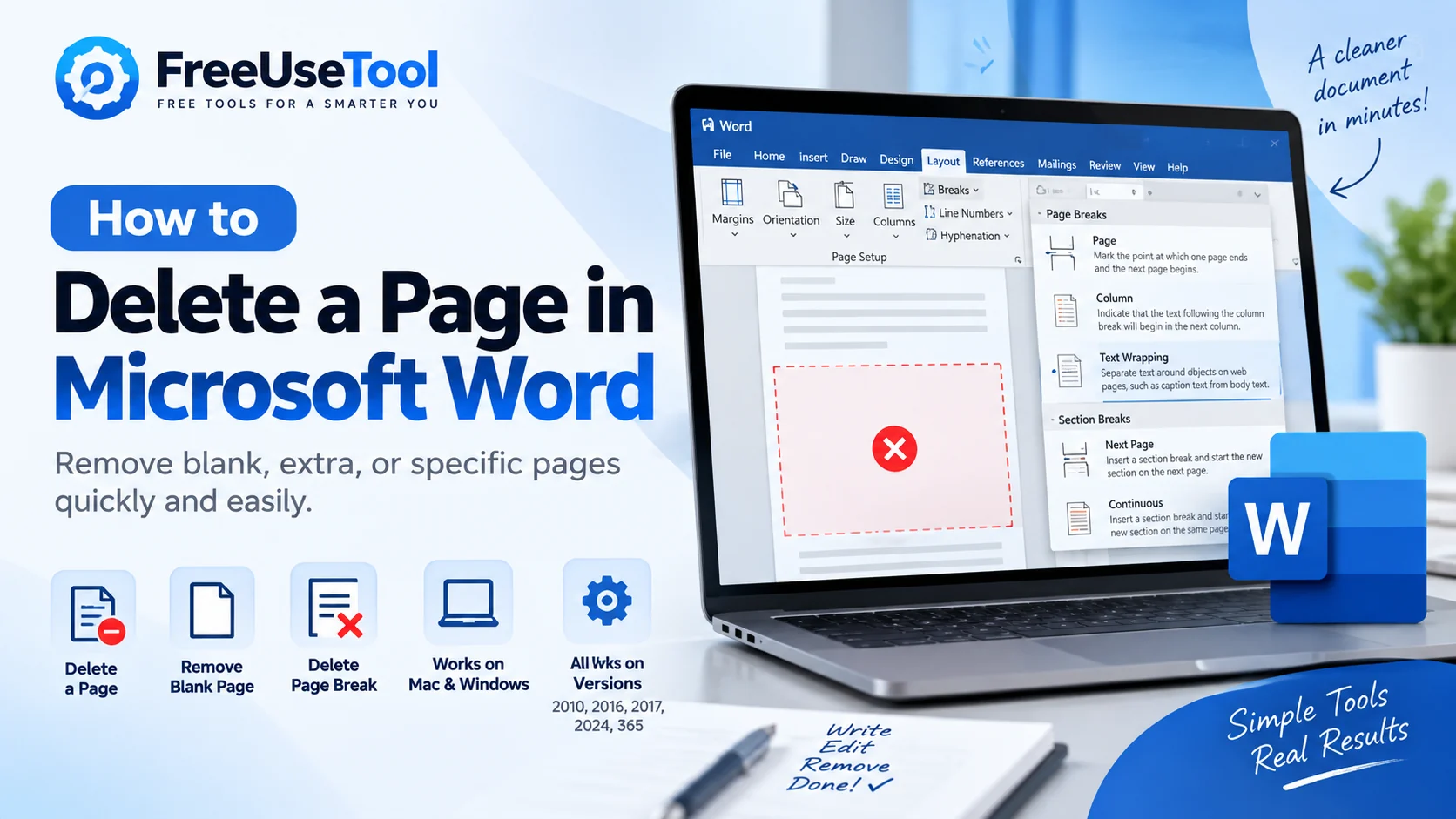
Trying to remove an unwanted page from a Word document can be frustrating, especially when the page looks completely blank and pressing Backspace does not remove it. Fortunately, once you understand what is creating the page, it usually takes only a few seconds to fix.
In this guide, you will learn how to delete a page in Microsoft Word, how to remove a blank page, how to delete a specific page, how to remove a page break, and what to do when an extra page refuses to disappear. The methods below cover Microsoft Word on Windows, Mac, Word 365, and many older versions of Word.
Quick Answer: How to Delete a Page in Microsoft Word
To delete a page in Microsoft Word, click anywhere on the page, press Ctrl + G on Windows or Option + Command + G on Mac, enter \page, press Enter, close the dialog, and then press Delete.
If the page is blank, turn on Word's formatting marks using Ctrl + Shift + 8 on Windows or Command + 8 on Mac. Then look for an empty paragraph, page break, or section break causing the unwanted page.
How to Delete a Page in Microsoft Word
The easiest way to delete a page in Microsoft Word depends on the type of page you want to remove. If the page contains text, images, tables, or other content, you can select everything on that page and delete it. If the page is blank, you may need to remove hidden formatting instead.
Here is the quickest method for a page that contains content:
- Click anywhere on the page you want to remove.
- Press Ctrl + G on Windows.
- On Mac, press Option + Command + G.
- Enter
\pagein the box. - Press Enter.
- Close the dialog box.
- Press Delete.
Word selects the content of that page, allowing you to remove it without manually dragging your mouse across every paragraph or image. This is particularly useful when you want to delete a whole page in Microsoft Word or remove a complete page from a long document.
How Do You Delete a Page in Microsoft Word?
If you are asking, “how do you delete a page in Microsoft Word?”, the answer depends on whether the page contains visible content.
For a normal page, use the Go To method with \page. For a blank page, turn on formatting marks first and find out what is forcing the page to exist. This distinction is important because a blank page is often caused by formatting rather than content.
How Do I Delete a Page in Microsoft Word?
To answer “how do I delete a page in Microsoft Word?” as simply as possible: click inside the page, select that page's content, and press Delete. The \page command makes selecting an entire page much easier than trying to highlight everything manually.
If nothing disappears, do not keep pressing Backspace. The page may be created by a page break, section break, empty paragraph, table, or other formatting element.
How to Delete a Blank Page in Microsoft Word
A blank page in Microsoft Word is one of the most common Word formatting problems. Usually, the page is not truly empty. Word may contain paragraph marks, page breaks, or section breaks that are not visible in the normal editing view.
To find the cause:
- Open the Home tab.
- Click the Show/Hide ¶ button.
- Look at the blank page.
- Check for empty paragraph marks, a page break, or a section break.
- Remove the unnecessary formatting element.
On Windows, you can also press Ctrl + Shift + 8. On Mac, press Command + 8.
This is usually the best approach when searching for how to delete a blank page in Microsoft Word or wondering why a blank page will not disappear.
How Do I Delete a Blank Page in Microsoft Word?
If you are asking “how do I delete a blank page in Microsoft Word?”, first enable formatting marks. Look for a series of paragraph symbols such as ¶. Select the unnecessary paragraph marks and press Delete or Backspace.
If the page remains, check for a manual page break or section break. These elements can force Word to start the next content on a new page even when the page appears empty.
How Do You Delete a Blank Page in Microsoft Word?
The answer to “how do you delete a blank page in Microsoft Word?” is usually to identify the hidden formatting that created it. Turn on paragraph marks, locate the unwanted break or empty paragraph, and remove it.
A blank page at the very end of a document may require one additional step because Word keeps a final paragraph mark after the document's content.
How to Delete a Whole Page in Microsoft Word
To delete a whole page in Microsoft Word, you do not have to select every line manually. Click inside the page, use the Go To command with \page, close the dialog, and press Delete.
This method is especially useful for documents containing several pages because it reduces the risk of accidentally leaving behind text, images, or objects.
How to Delete a Full Page in Microsoft Word
The process for how to delete a full page in Microsoft Word is essentially the same as deleting a whole page. Select the page using the Go To command and then delete the selected content.
Before deleting a page from an important document, check that you are removing the correct page. If the page contains information you may need later, save a copy of your document first.
How to Delete a Specific Page in Microsoft Word
If you want to delete a specific page in Microsoft Word, click somewhere on that page before opening the Go To dialog. Word can then select the page containing your cursor.
This makes the method practical when you have a 20-page or 50-page document and only want to remove one particular page.
How Do I Delete a Single Page in Microsoft Word?
To answer “how do I delete a single page in Microsoft Word?”, place your cursor on the page you want to remove, press Ctrl + G, enter \page, press Enter, close the dialog, and press Delete.
This removes the selected page content without requiring you to delete the surrounding pages.
How Do I Delete a Second Page in Microsoft Word?
To delete a second page in Microsoft Word, click somewhere on page two and use the same Go To technique. The page number itself does not need to be typed into the Go To field. Word selects the page where your cursor is located when you use the \page command.
If page two is blank, use the formatting-mark method instead. The problem may be caused by a page break separating the first and second pages.
How to Delete a Page Break in Microsoft Word
Sometimes the problem is not the page itself but a page break that forces Word to start the next section on a new page.
To delete a page break in Microsoft Word:
- Turn on Show/Hide ¶.
- Find the line labeled Page Break.
- Click immediately before or select the page break.
- Press Delete.
Once the manual page break has been removed, the following content can move back onto the previous page.
Why Can't I Delete a Page in Microsoft Word?
If you are searching “why can't I delete a page in Microsoft Word?”, there is usually a formatting reason. Pressing Backspace repeatedly may not work because Word is preserving an empty paragraph, section break, final paragraph, or another layout element.
The fastest way to troubleshoot the problem is to enable formatting marks. Once you can see what is creating the extra page, you can remove or adjust that element instead of trying random keyboard shortcuts.
Why Does a Blank Page Appear at the End of a Word Document?
A blank page at the end of a document is often caused by Word's final paragraph mark. This is particularly common when the previous page ends with a table.
Turn on formatting marks and select the final paragraph mark. If necessary, reduce its font size to 1 point so it can fit on the previous page. You can also review the bottom margin and spacing settings.
How to Delete an Extra Page in Microsoft Word Document
If your document suddenly has an extra page, determine whether the problem is caused by content or formatting. An extra page may contain a few hidden paragraph marks, a page break, a section break, or a final paragraph that has been pushed onto a new page.
The phrase “how to delete a page in Microsoft Word document” covers many of these situations. The safest approach is always to identify the cause before deleting anything.
How Can I Delete a Page in Microsoft Word?
If the question is “how can I delete a page in Microsoft Word?”, start by clicking inside the unwanted page. Use the Go To command and enter \page to select the page content, then press Delete.
For a blank page, turn on paragraph marks and remove the formatting element creating the page.
How Do I Delete a Page in Microsoft Word Document?
To delete a page in a Microsoft Word document, place the cursor on the page, select its contents using the Go To command, and delete them. If the page is blank, inspect paragraph marks and page or section breaks.
This approach works better than holding Backspace because it allows you to understand exactly why the page exists.
In Microsoft Word, How to Delete a Page
When someone asks “in Microsoft Word how to delete a page”, the quickest answer is to use the Go To command. Click on the page, press Ctrl + G, type \page, press Enter, close the dialog, and press Delete.
For a blank page, switch on formatting marks and remove the blank paragraph, page break, or section break causing it.
In Microsoft Word, How Do I Delete a Blank Page?
If you are looking for “in Microsoft Word how do I delete a blank page?”, start by showing hidden formatting. A blank page is often caused by something that is invisible in the standard editing view.
Once the formatting marks are visible, delete the unnecessary paragraph marks or page break. If you see a section break, be more careful because removing it can change document formatting.
How to Delete a Page in Microsoft Word on Mac
The process for how to delete a page in Microsoft Word on Mac is very similar to Windows, but the keyboard shortcut is different.
- Click anywhere on the page.
- Press Option + Command + G.
- Enter
\page. - Press Enter.
- Close the dialog.
- Press Delete.
For a blank page, press Command + 8 to display formatting marks and then inspect the paragraph marks, page breaks, or section breaks.
How to Delete a Page in Microsoft Word 365
Microsoft 365 uses the same basic page-selection method. To delete a page in Microsoft Word 365, click inside the page, press Ctrl + G, enter \page, press Enter, close the dialog, and delete the selected content.
If the unwanted page is blank, use the Show/Hide formatting marks to identify the cause.
How to Delete a Page in Microsoft Word 2024
If you are using Word 2024 and searching for how to delete a page in Microsoft Word 2024, the standard Go To technique remains the easiest option for a page containing content.
For blank pages, the troubleshooting process is the same: inspect formatting marks, page breaks, section breaks, and the final paragraph.
How to Delete a Page in Microsoft Word 2016
Users searching for how to delete a page in Microsoft Word 2016 can use the same Go To method. Click the page, open Go To, enter \page, press Enter, close the dialog, and delete the selected content.
How Do You Delete a Page in Microsoft Word 2016?
To answer “how do you delete a page in Microsoft Word 2016?”, select the page with the \page command and press Delete. For an unwanted blank page, turn on formatting marks and remove the element responsible for it.
How to Delete a Page in Microsoft Word 2017
If you are searching for how to delete a page in Microsoft Word 2017, the same fundamental approach applies. Select the page content and delete it. If the page is blank, check for hidden formatting.
How to Delete a Page in Microsoft Word 2010
In older versions such as Word 2010, you can still remove a page by selecting its content and pressing Delete. If you are specifically searching how to delete a page in Microsoft Word 2010, formatting marks can also help identify an unwanted blank page.
How Do You Delete a Page in Microsoft Word 2010?
To answer “how do you delete a page in Microsoft Word 2010?”, select the content on the unwanted page and press Delete. For blank pages, turn on paragraph marks and check for page breaks or empty paragraphs.
How to Delete a Page in Microsoft Word Official Method
If you are searching for how to delete a page in Microsoft Word official instructions, Microsoft's own guidance recommends selecting the page content through the Go To feature. For blank pages, Microsoft also recommends checking paragraph marks, page breaks, and section breaks.
For the official instructions, see Microsoft's official guide to deleting a page in Word.
How to Delete a Page Without Affecting the Rest of Your Document
If you only want to remove one page, avoid deleting content blindly from the end or beginning of the document. Select the target page first and make sure only the intended content is highlighted.
If a section break is involved, remember that deleting it can merge sections and change headers, footers, margins, orientation, or other formatting. Always check the document after removing a section break.
What to Do When Backspace Does Not Delete the Page
Pressing Backspace may remove visible text but leave the page behind. When that happens, turn on formatting marks and inspect the page carefully.
- Empty paragraph marks: Delete unnecessary paragraph marks.
- Page break: Select and delete the manual page break.
- Section break: Remove it carefully because it can change formatting.
- Table at the end: Check the final paragraph after the table.
- Spacing or margins: Adjust the layout if the final paragraph is being pushed to another page.
How to Delete an Unwanted Page After a Table
A table near the end of a document can sometimes cause Word to create a blank page. This happens because Word maintains a final paragraph after the table.
Turn on formatting marks and select that final paragraph. Reducing its font size can help it fit on the previous page. You may also need to review paragraph spacing or the document's bottom margin.
How to Delete an Unwanted Page Caused by a Section Break
Section breaks are useful when different parts of a document need different formatting, but they can also create confusing blank pages.
If you remove a section break, Word combines the surrounding sections. That can cause changes to page orientation, headers, footers, margins, or numbering. If formatting needs to remain separate, consider whether a continuous section break is more appropriate.
How to Delete a Page in Microsoft Word: Quick Reference
| Problem | What to do |
|---|---|
| Delete a normal page | Use Go To with \page, then Delete |
| Delete a blank page | Show formatting marks and remove the cause |
| Delete an extra page | Check paragraph marks, page breaks, and section breaks |
| Delete a page break | Select the manual page break and press Delete |
| Delete a specific page | Click inside that page and select it using \page |
| Delete a page on Mac | Use Option + Command + G |
| Remove a final blank page | Check the final paragraph, page break, and table formatting |
Related Microsoft Word Guides
If you work with Word documents regularly, you may also find these Free Use Tool guides useful.
First, learn how to get Microsoft Word for free and explore the available options for creating and editing Word documents.
If you need to check the length of a document after editing it, use our free Word Counter and Word Count Checker to count words, characters, sentences, paragraphs, and reading time.
You can also learn how to check word count on Google Docs if you prefer working with documents online.
Frequently Asked Questions
How to delete a page in Microsoft Word?
Click anywhere on the page, press Ctrl + G on Windows or Option + Command + G on Mac, type \page, press Enter, close the dialog, and press Delete.
Delete a page in Microsoft Word: what is the easiest way?
For a page containing content, use the Go To command with \page. For a blank page, use formatting marks to locate the hidden element creating the page.
How can I delete a page in Microsoft Word?
Select the page content and press Delete. For blank pages, inspect paragraph marks, page breaks, and section breaks.
How do I delete a page in Microsoft Word document?
Select the unwanted page using the Go To command and delete the selected content. If the page is blank, identify its formatting cause first.
How to delete a page in Microsoft Word on Mac?
On Mac, use Option + Command + G, enter \page, press Enter, close the dialog, and press Delete.
How to delete a page in Microsoft Word document with content?
Click on the page, use the Go To command with \page, and delete the selected content.
How to delete a page in Microsoft Word 365?
Click inside the target page, use Ctrl + G and \page, then delete the selected content. Blank pages may require formatting marks.
How to delete a page in Microsoft Word 2024?
Use the Go To method for pages containing content and formatting marks for blank pages.
How to delete a page in Microsoft Word 2017?
Select the page content and press Delete, or inspect formatting marks if the page is blank.
How to delete a page in Microsoft Word 2016?
Use the same page-selection method with the Go To command and \page.
How to delete a page in Microsoft Word 2010?
Select the content on the unwanted page and delete it. For blank pages, check paragraph marks and page breaks.
How do you delete a page in Microsoft Word?
Click on the page, select its content using \page, and press Delete.
How do I delete a page in Microsoft Word?
Use the Go To command to select the page, then press Delete.
How do you delete a page in Microsoft Word document?
Place your cursor on the target page, select the page content, and delete it. Blank pages require additional formatting checks.
How do you delete a page in Microsoft Word 2010?
Select the unwanted page's content and delete it. If the page is blank, enable formatting marks to find the cause.
How do you delete a page in Microsoft Word 2016?
Use the Go To command with \page to select the page and then press Delete.
How to delete a page in Microsoft Word official?
Microsoft's official approach is to select page content using the Go To feature or remove the formatting element responsible for an unwanted blank page.
Why can't I delete a page in Microsoft Word?
The page may be caused by an empty paragraph, page break, section break, table, or final paragraph. Turn on formatting marks to identify the problem.
How do I delete a blank page in Microsoft Word?
Turn on formatting marks and remove the empty paragraph, manual page break, or section break creating the page.
How do I delete a second page in Microsoft Word?
Click inside page two, use Go To with \page, and press Delete. If page two is blank, inspect formatting marks.
How do I delete a single page in Microsoft Word?
Place your cursor on the page and use the \page command to select its content before pressing Delete.
How can I delete a page in Microsoft Word?
Select the page content and press Delete. For blank pages, find and remove the formatting element responsible for the page.
How to delete a page break in Microsoft Word?
Turn on Show/Hide formatting marks, select the manual page break, and press Delete.
How to delete a full page in Microsoft Word?
Use the Go To command with \page to select the page and then delete it.
How to delete a specific page in Microsoft Word?
Click inside the specific page, select it with \page, and press Delete.
How do I delete a blank page in Microsoft Word on Mac?
Use Command + 8 to display formatting marks and remove the empty paragraph, page break, or section break creating the blank page.
Final Thoughts
Knowing how to delete a page in Microsoft Word is much easier when you first determine what is creating the page. A normal page containing text or images can usually be removed with the Go To method, while a blank page often requires you to remove hidden formatting.
If the page will not disappear, turn on formatting marks instead of repeatedly pressing Backspace. Look for paragraph marks, page breaks, section breaks, tables, or the final paragraph at the end of the document.
Whether you are using Word 2010, Word 2016, Word 2017, Word 2024, Microsoft Word 365, Word on Mac, or a newer version, the same basic troubleshooting principles apply. Identify the cause first, remove only what is unnecessary, and then check the surrounding document formatting.
For Microsoft's current official instructions, you can also read Microsoft's official guide to deleting a page in Word.
Comments
Sign in to join the conversation.
Sign InBe the first person to start the conversation.